
Receiving & Importing Invoices
This page covers how to sync incoming invoices from KSeF, view their details, and import them into Dolibarr as supplier invoices - including auto-matching, auto-creation, and handling correction invoices.
Syncing Incoming Invoices
Invoices sent to your company by suppliers through KSeF can be downloaded and viewed directly in Dolibarr.
1. Go to the Incoming Invoices page (accessible from the KSeF menu)
2. Click "Synchronize with KSeF"
3. The module connects to KSeF and downloads any new invoices addressed to your NIP
The sync runs in the background so it doesn't lock up the interface, even when downloading large numbers of invoices. It processes in 60-day windows to stay within KSeF API limits, so if you are using this module in the future you will need to either allow it to automatically sync for some time, or run the sync multiple times until status is completely updated.
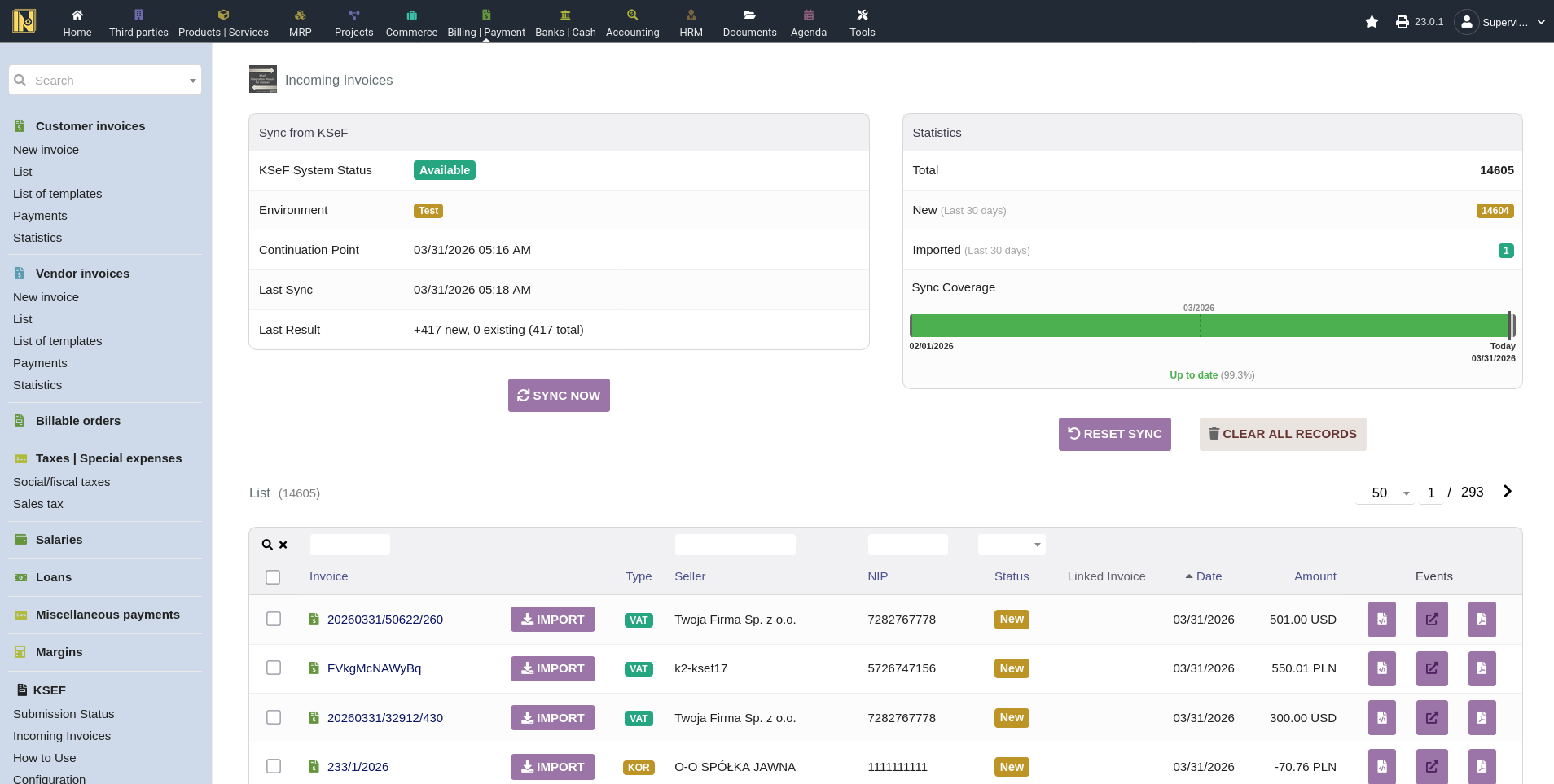
Sync Coverage Timeline - The incoming invoices list and the module's index page both show a sync coverage timeline bar - a visual indicator of what date range has been synced and whether there are gaps. If the sync encounters errors (e.g. malformed invoices from suppliers), these are shown in a popup after sync completes so you can review them without the sync itself being blocked.
On invoice formats: The parser handles FA(3) format invoices, which is the current standard. If a supplier somehow sends an older FA(2) format invoice through KSeF, it'll show up as a parsing failure in the sync error popup.
Automatic Syncing - You can set up a scheduled job to sync incoming invoices automatically - see Automation & Extra Features for details.
Viewing Incoming Invoices
Each synced invoice appears in the incoming invoices list. The list is searchable - you can filter by invoice number, seller name, seller NIP, and import status (New/Imported/Error). Skipped invoices aren't a filter option but still appear in the list with a "Skipped" badge. Each row shows the invoice number, type badge, seller, import status, linked Dolibarr invoice (if imported), date, and amount. There's also a quick Import button on each row so you can jump straight to importing without opening the card first. Click on any invoice to see the full details.
Invoice Card
The incoming invoice card shows everything parsed from the KSeF XML:
Seller information (name, NIP, VAT ID, address, country)
Invoice number, dates (invoice date and sale date if different), and type
Line items with descriptions, supplier references, quantities, net/gross unit prices, VAT rates, and line totals
Payment information - due date, payment method, bank account, and if available: payment status (paid/partial), payment date, and payment amount
VAT summary table - breakdown by VAT rate showing net and VAT amounts per rate
Totals and currency information
KSeF environment (Test/Demo/Production) and the date the invoice was fetched
For correction invoices, the card shows which invoice is being corrected and displays the correction type badge (standard correction, advance payment correction, or settlement correction). The correction reason is shown when available. If a correction invoice references multiple original invoices, all references are displayed in a table with links to the corresponding incoming invoices and any imported Dolibarr supplier invoices.
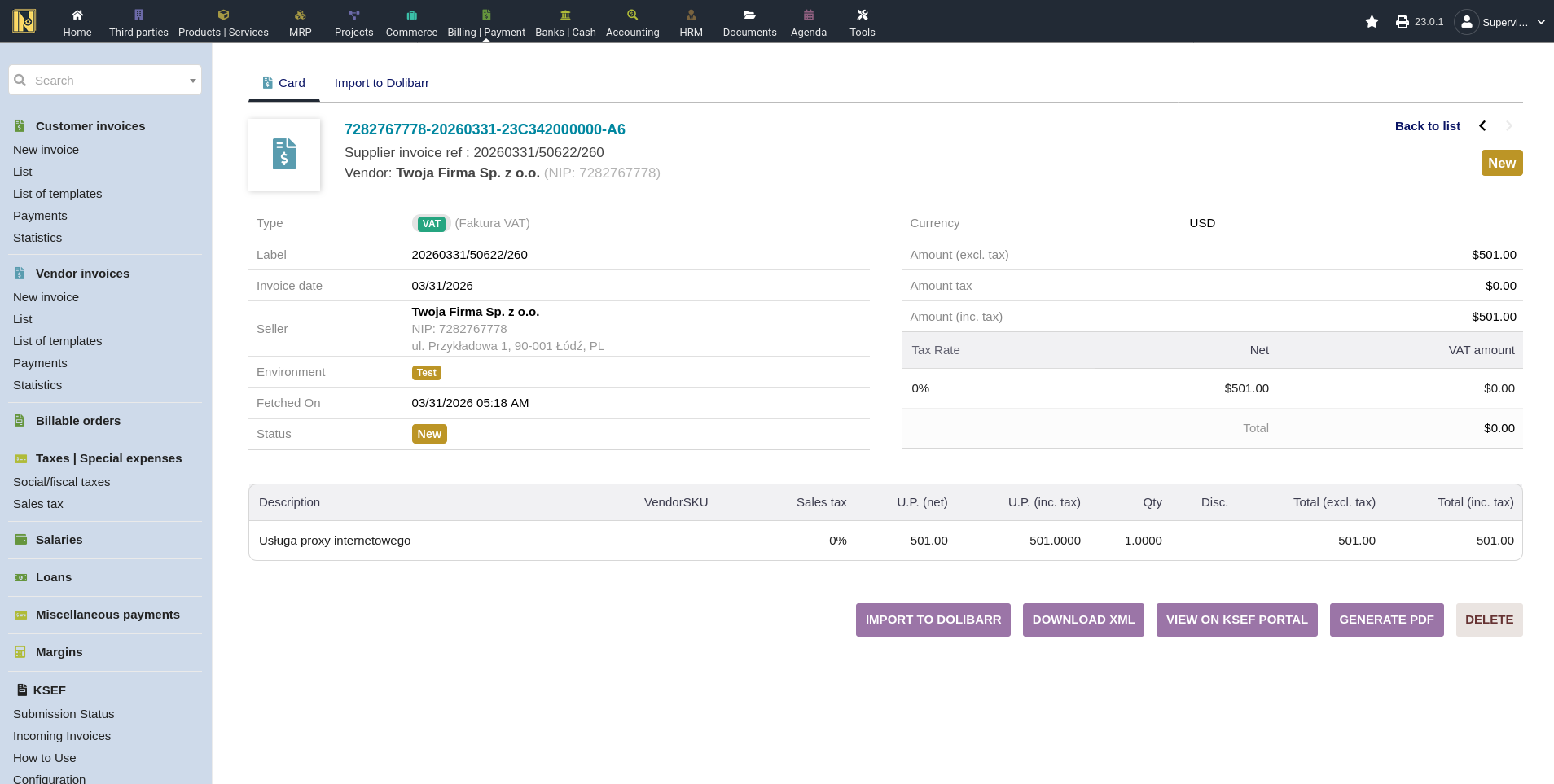
Actions and Downloads - From the incoming invoice card you can:
Import to Dolibarr - opens the import page (available for invoices in New or Error status)
Download the original XML - the raw FA(3) XML as received from KSeF
Download a PDF - a KSeF-style PDF visualization of the invoice
Verify on KSeF portal - a direct link to check the invoice on the official portal
Delete - removes the incoming invoice record (only available for New invoices that haven't been imported)
Importing to Dolibarr
Incoming invoices can be imported as supplier invoices in Dolibarr. There are two import methods: individual import for careful review of each invoice, and batch import for processing many at once.
Imported invoices are created as drafts. They're not automatically validated or marked as paid, even if the KSeF XML indicates payment. This is intentional - it gives you a chance to review the data before finalizing. You can validate manually, or use the "Validate & Add Payment" shortcut (see Payment Data below) when full payment information is available.
How Matching Works
When importing, the module tries to match data from the KSeF invoice to existing records in Dolibarr:
Supplier matching - the module looks for an existing third party by comparing tax identification numbers. It checks the seller's NIP against your third parties' NIP fields, and EU VAT numbers against the VAT field. Which Dolibarr fields get checked depends on your configured identifier mappings (see Getting Started). If there's a match, the invoice is linked to that supplier automatically.
Product matching - for each line item, the module tries to find a matching product in three ways, in order:
1. Product reference - compares the supplier's product code (indeks/P_7 field) against Dolibarr product references
2. Supplier reference - checks against supplier-specific product references in Dolibarr
3. Barcode/GTIN - if the invoice line includes a GTIN/EAN code, compares it against product barcodes in Dolibarr
If none of these match, the line item is imported as free text on the supplier invoice (description only, no linked product) - unless auto-creation is enabled.
Individual Import
Individual import lets you review and adjust everything before the invoice is created in Dolibarr. Open an incoming invoice and go to the "Import to Dolibarr" tab. You'll see:
Supplier selection - if the module found a match, it's pre-selected. If not, you can search for an existing supplier or create a new one. When creating a new supplier, the form is pre-filled with the seller's name, address, and tax identifiers from the invoice
Line item matching - each line shows the description, quantity, price, and VAT rate from the invoice, alongside a product selector. Matched products are pre-selected. For unmatched lines, you can search for a product or click the "+" button to create a new product pre-filled with the reference, description, price, VAT rate, and barcode from the invoice line
Import options - you can import line items as text only (no product linking) if you don't need inventory tracking for this invoice
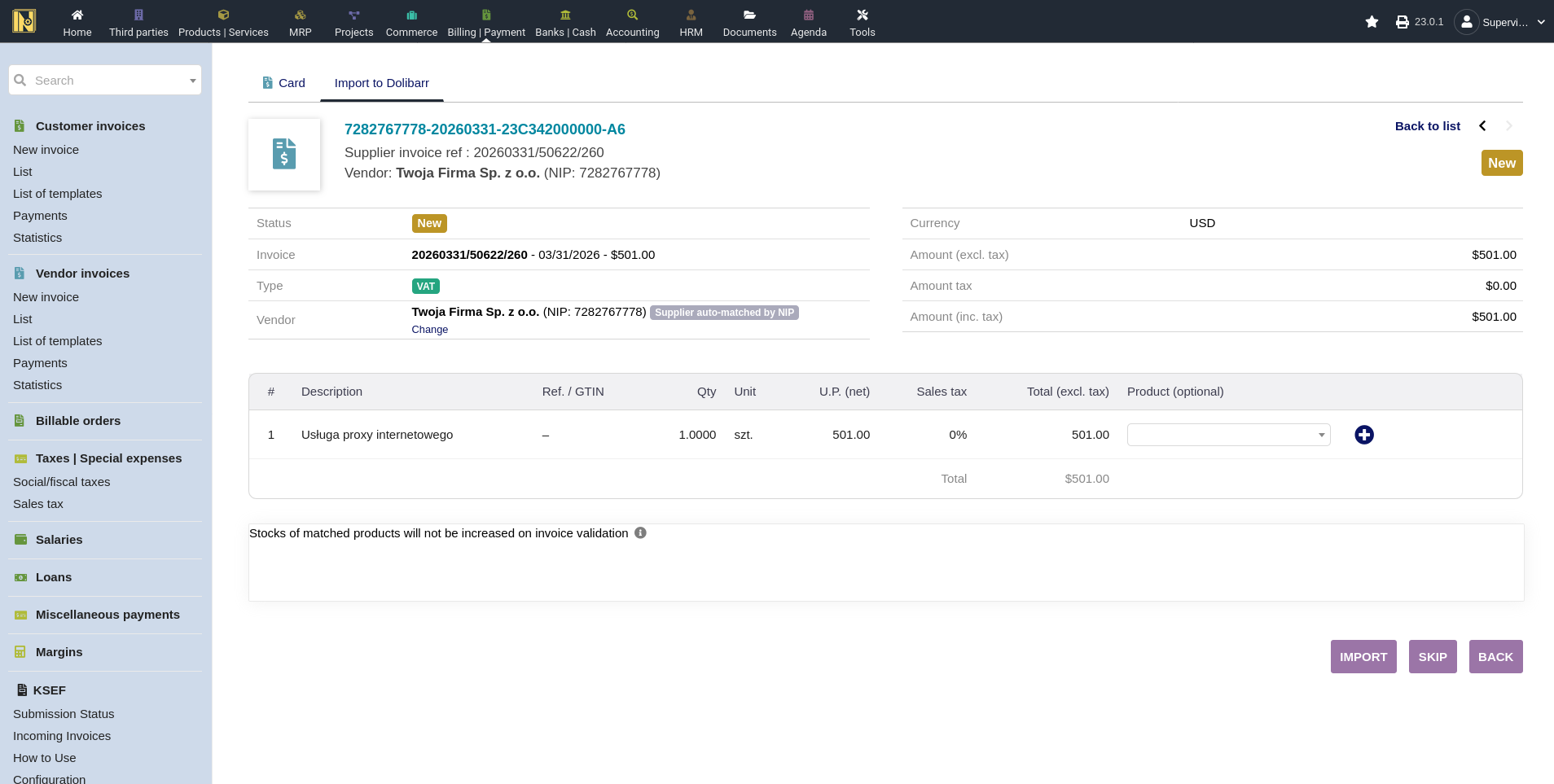
Importing without product linking - If you don't track products for supplier invoices or don't need to link lines to your product catalog, you can import everything as free text descriptions. All the financial data (amounts, VAT rates) is preserved - you just won't have product-level tracking on those lines.
Batch Import
Batch import processes multiple invoices at once from the incoming invoices list:
1. On the incoming invoices list, select the invoices you want using the checkboxes**
2. Choose the batch import action
3. The module shows a preview with validation status for each invoice
For each selected invoice, the module attempts to match the supplier by NIP/VAT number, attempts to match each line item by product reference, supplier reference, or barcode, and creates the supplier invoice in Dolibarr with all matched data.
Auto-Creation Options
Batch import behavior depends on your module settings (configured in Getting Started):
Auto-create suppliers - when enabled, unmatched suppliers are created automatically using the name, address, country, and tax identifiers (NIP, KRS, REGON, BDO) from the invoice. When disabled, invoices from unknown suppliers are skipped.
Auto-create products - when enabled, unmatched line items become new products with the reference, description, price, VAT rate, and barcode from the invoice. When disabled, unmatched lines are imported as free text.
Use supplier's product code as ref - controls whether the supplier's code (indeks) becomes the product reference when auto-creating, or whether Dolibarr's automatic numbering is used.
These are defaults - remembered from your last batch import and adjustable in module settings. The batch import preview is interactive: you can expand individual invoices to see per-line product matching detail, toggle the auto-create checkboxes and watch the preview update in real time, and check or uncheck specific invoices to include or exclude them.
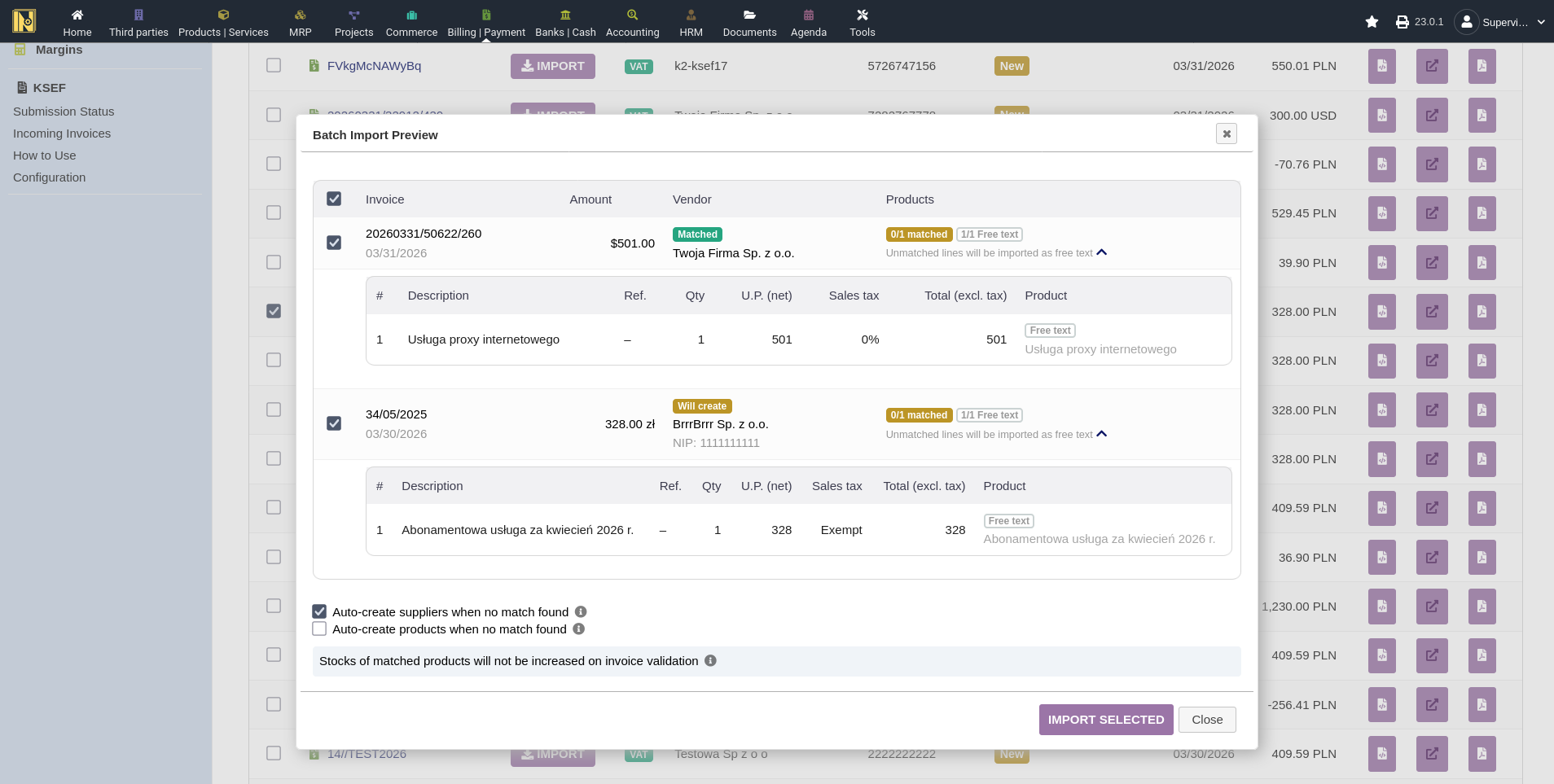
Validation and Blocking - The batch import preview shows warnings and blocking issues:
Warnings - non-critical issues like unmatched products (they'll import as text) or minor data discrepancies
Blocking issues - things that prevent import, such as correction invoices where the original hasn't been imported yet
Invoices with blocking issues are skipped during batch import. They will need to be imported individually.
Correction Invoice Importing
Correction invoices (faktury korygujące) have special handling during import.
Import order matters. The module requires you to import the original invoice before its correction. Dolibarr needs the original supplier invoice to exist so the correction can be linked to it. If you try to import a correction before its original, the import is blocked with a message telling you which invoice needs to be imported first. This can be overridden if needed in individual import.
Wrong KSeF Number Detection - A possible issue in real-world data: suppliers creating correction invoices that incorrectly use the correction invoice KSeF number as the "corrected invoice" reference instead of the original invoice's KSeF number. The module detects this and warns you during import, since it means the correction can't be properly linked to the original.
Two modes for corrections that increase the total - When a correction invoice increases the total amount (rather than reducing it, as most corrections do), Dolibarr's credit note system doesn't handle this natively. The module offers two approaches, selectable on the import page:
1. Supplementary invoice for the difference (the default) - a new standard invoice is created for just the difference between the original and corrected amounts. Use this when only part of the invoice changed, for example an additional line item or a small price adjustment.
2. Zero out the original and create a replacement - the original is zeroed via a credit note and a new standard invoice is created for the final corrected amount. Use this when the entire invoice needs to be restated, for example when a supplier corrected the price on all line items.
The "zero out and replace" mode requires a single linked original invoice that has already been imported. If a correction references multiple originals, the module falls back to the difference mode automatically.
Import Status Tracking
Each incoming invoice has an import status:
New - synced from KSeF but not yet imported
Imported - successfully imported as a supplier invoice in Dolibarr
Skipped - manually set aside as "don't import" (e.g. an invoice you don't need in Dolibarr, like test data). Use the Skip button on the import page; you can Re-open it for import later if you change your mind
Error - import was attempted but failed
Imported invoices are linked to their corresponding supplier invoices - you can navigate between them directly. You can reset an imported invoice back to New if you need to re-import, but only after the linked supplier invoice has been deleted from Dolibarr. If the supplier invoice still exists, the reset is blocked to prevent orphaned records. Incoming invoices in New status can also be deleted entirely if they're not relevant.
The module blocks duplicate imports - if you try to import an invoice that's already been imported, it tells you and points you to the existing supplier invoice.
Payment Data and Date of Sale
When payment information is available in the KSeF XML (payment status, method, date, and amount), the module displays it on the incoming invoice card, the import preview, and the resulting supplier invoice after import. If full payment data is available - including the payment method - and the imported supplier invoice is still in draft, a "Validate & Add Payment" button appears. This validates the invoice and records the payment in one step, using the data from the KSeF XML. The module maps KSeF payment method codes to Dolibarr payment types automatically.
When the KSeF XML includes a sale date (which may differ from the invoice date), the module displays it on the incoming invoice card and writes it to the supplier invoice's Date of Sale extrafield during import. This preserves the original sale date from the supplier's invoice in your Dolibarr records.
Multicurrency, Stock, and Attached Files
Multicurrency - Incoming invoices in foreign currencies are handled automatically. The module reads the exchange rate from the KSeF XML and applies it to the imported supplier invoice - you don't need to fetch the rate separately.
Stocks - Importing an invoice does not affect stock levels. Stock movements only happen when you validate the imported supplier invoice, and only if the Dolibarr Stock module is configured to "Increase real stock on supplier invoice/credit note validation" (Home -> Setup -> Modules -> Stock settings). Line items imported as free text (without a linked product) never affect stock regardless of your settings - stock movements require a product association.
Attached Files - When an incoming invoice is imported, the module automatically generates and attaches a KSeF-style PDF visualization to the supplier invoice for easy reference. The supplier invoice has a readable PDF of the original KSeF invoice attached from the moment of import.