
Sending Invoices
This page covers everything about sending invoices to KSeF, from creating invoices through confirmation, issuing correction invoices, handling foreign currency, offline mode, and what you get after submission
On This Page
Creating an Invoice
Standard Invoicing Workflow
The KSeF module works with invoices you create through Dolibarr's normal invoicing workflow. You don't need to do anything KSeF-specific when creating the invoice - just create it the way you normally would. Common paths to creating an invoice:
From scratch - go to Billing -> Customer Invoices -> New Invoice, select the customer, add line items
From a sales order - open a validated sales order and use the "Create Invoice" button. This carries over the customer, line items, and links the invoice to the order
From a shipment - create an invoice from a completed shipment record
As a recurring/template invoice - set up a template and generate invoices from it
The module hooks into the invoice after creation. Whatever method you use, the KSeF workflow is the same once the invoice exists.
KSeF-Specific Fields
The module adds a couple of extra fields to invoices worth reviewing before submission:
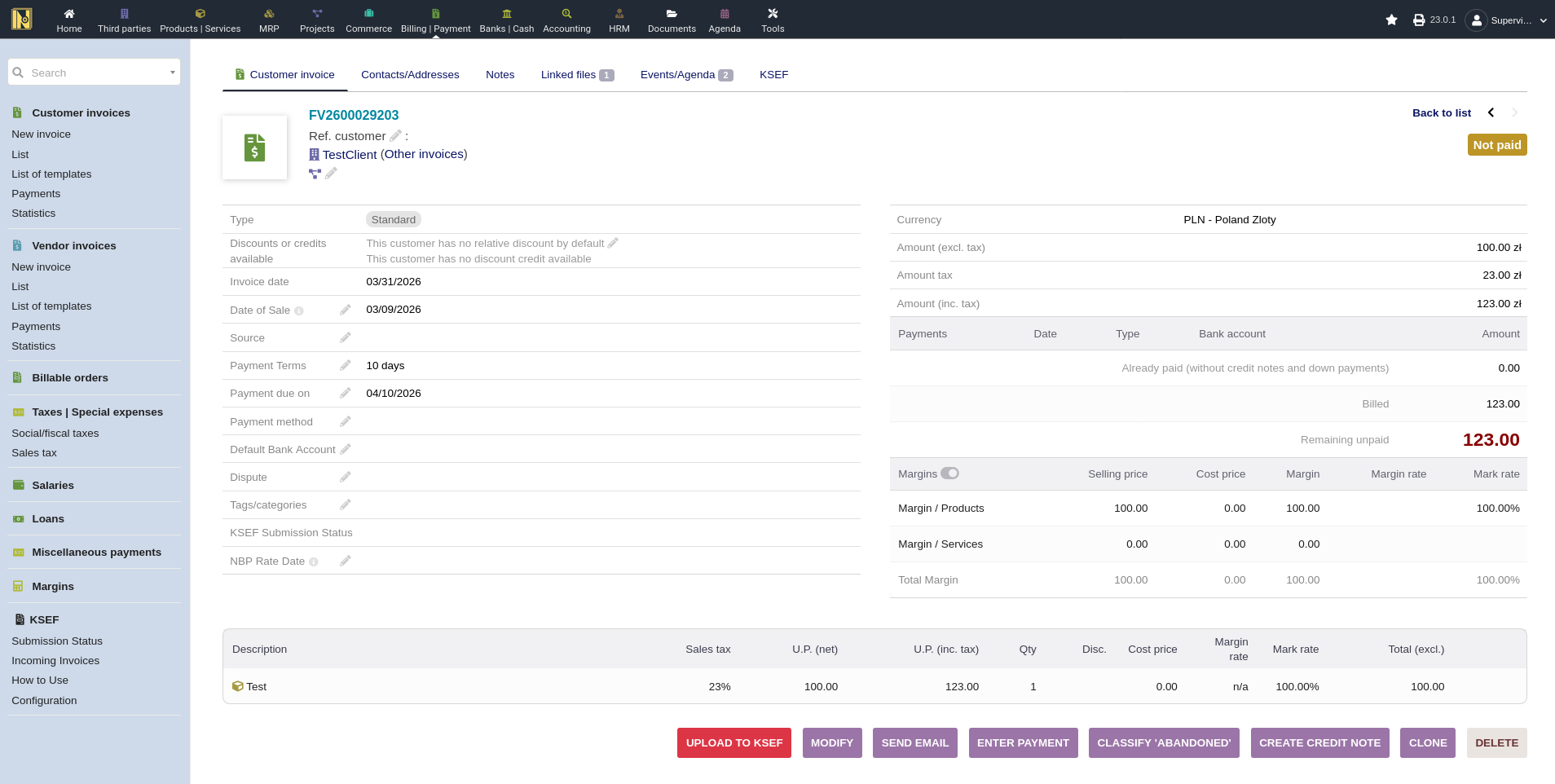
Date of Sale - an extrafield added by the module. By default it's auto-populated based on your configured source (linked delivery/order date or invoice date - see Getting Started for details). You can override it manually on any invoice before submission
KSeF exclusion - if the customer is excluded from KSeF submissions, the KSeF button won't appear on their invoices
Invoice Notes and Custom Fields
Anything configured in the "Invoice Notes and Custom Fields" section of module setup (see Getting Started) shows up on the invoice when you're editing it.
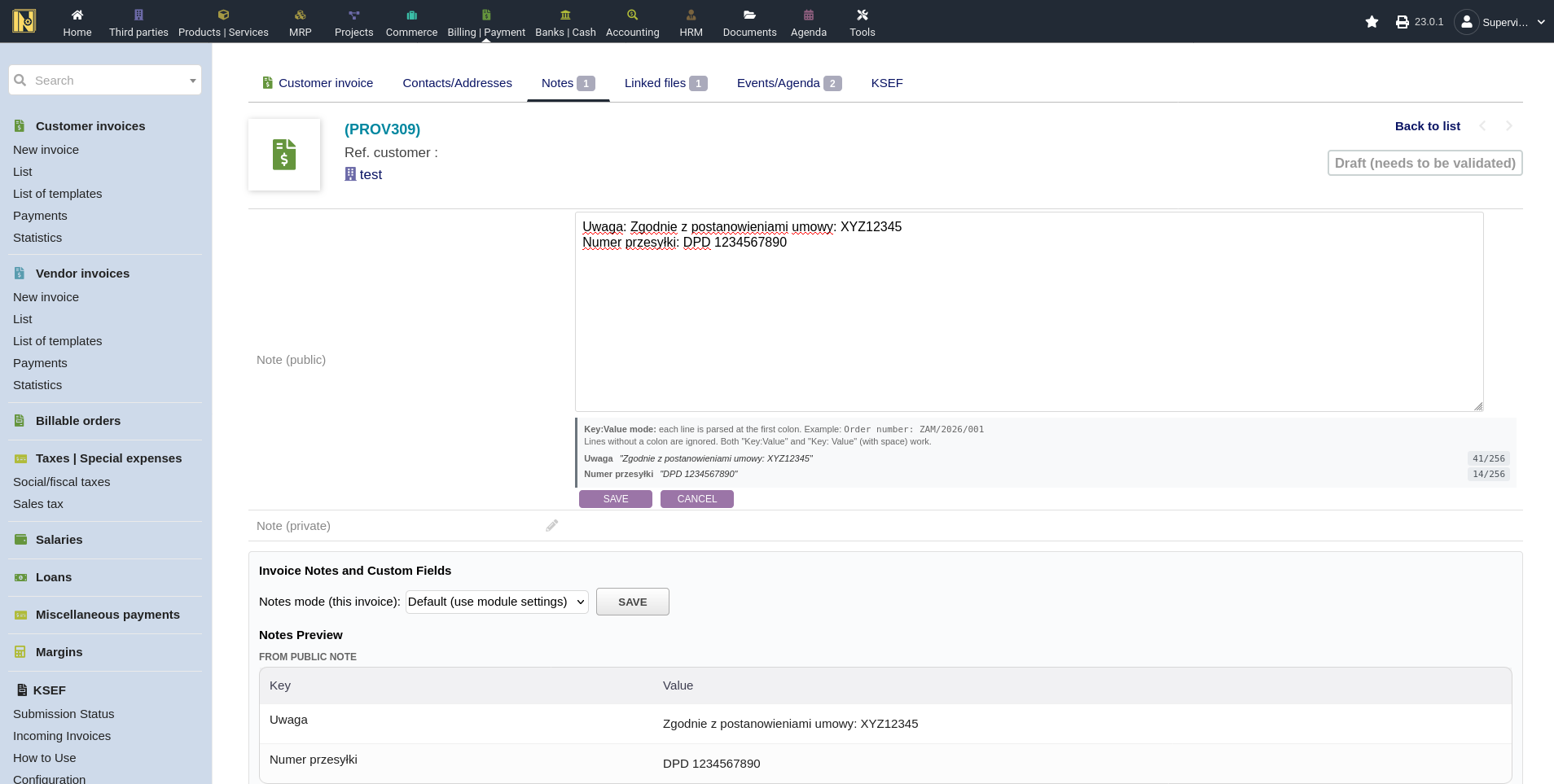
Notes Tab Helper: on the invoice's Notes tab, a helper box sits below the public note textarea. It shows the current mode (Simple, Key:Value, or Disabled), a per-entry character breakdown so you can see exactly how the note will be split, and the list of custom fields that will be included alongside it.
Preview Panel: both the Notes tab and the invoice card show a preview panel listing exactly what will be sent to KSeF, grouped by source (public note entries vs custom field entries). The panel reflects the last saved state of the invoice - edit, save, and the panel updates.
Per-Invoice Mode Override: the Notes tab has a "Notes mode (this invoice)" dropdown that overrides the global setting for a single invoice. Setting it to Simple or Key:Value forces that mode on this invoice only; configured custom fields are still included. Setting it to Disabled omits the whole notes section from this invoice's XML, including custom fields. The global setting from module setup is used for every other invoice.
Keys and values are capped at 256 characters. In Simple mode the public note splits into numbered entries (Uwagi 1, Uwagi 2, ...) if it exceeds the limit; in Key:Value mode and for custom field values, anything beyond 256 characters is truncated. The preview panel shows the final values so you can spot truncation before submitting.
Bank Account on Invoices
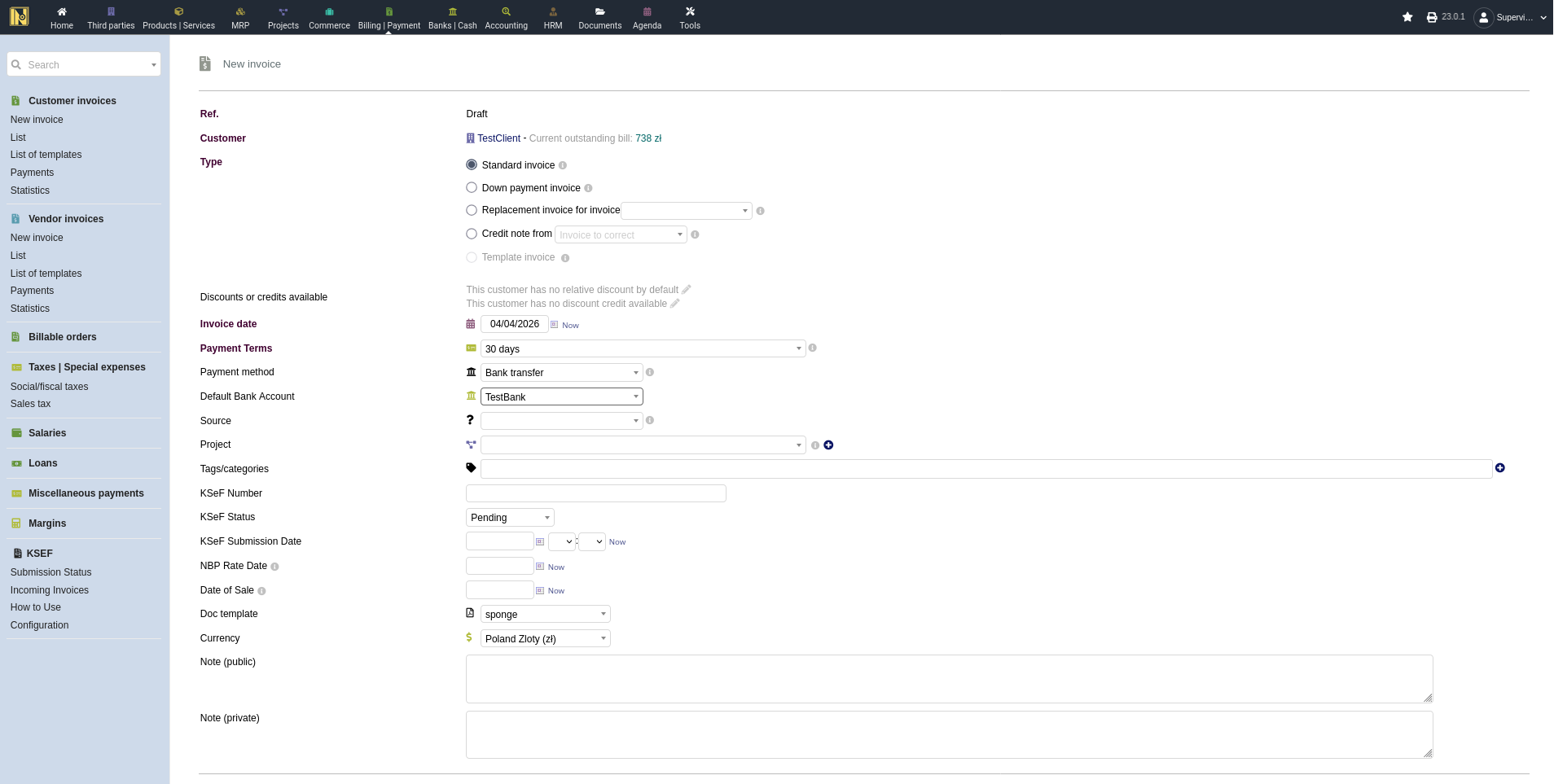
If you send invoices with bank transfer as the payment method and want your bank account details (IBAN) to appear on the invoice, you need to assign a bank account to the invoice. Dolibarr can auto-fill this for you:
1. Go to Banks | Cash and make sure your bank account has the IBAN filled in. SWIFT/BIC and bank name are optional but recommended.
2. On the customer's Third Party card, set a default bank account. This will auto-fill on new invoices for that customer.
3. When creating an invoice with bank transfer payment, verify the Default Bank Account dropdown shows the correct account.
4. If the bank account is set and the payment method is bank transfer, the IBAN will be included in the KSeF XML automatically.
Advanced FA(3) Fields
The FA(3) XML supports a set of optional fields that carry extra tax and trade data. You configure these on the Outgoing Invoices tab of the module setup, and they're sourced from Dolibarr extrafields (on the invoice, third party, or product) so they fill in automatically. None of them are required - enable only the ones your business actually needs. The basics (customer code, product code, GTIN, unit of measure) are covered in Getting Started; the fields below are the more advanced ones.
Entity fields (Podmiot)
Buyer ID (IDNabywcy) - a stable buyer identifier that stays consistent across corrections even when the buyer's other data changes. Sourced from the customer code or a third party extrafield.
EORI Number (NrEORI) - the EU customs/trade identifier. Your own (seller) EORI is set in the configuration; the buyer's EORI comes from a third party extrafield. Only relevant if you do EU customs operations.
Line-level fields (FaWiersz)
GTU markers - goods and services classification codes GTU_01 through GTU_13, set per invoice line from a product extrafield. These help line your invoices up with JPK_VAT reporting.
Procedura markers - procedure codes per line (WSTO_EE, IED, TT_D, MPP, and others), also from a product extrafield.
Line UUID (UU_ID) - a unique identifier per line for reliable matching in corrections. Note it shows up on the KSeF PDF visualization, which can confuse recipients, so only enable it if you genuinely need it.
Invoice flags
FP (faktura do paragonu) - an invoice issued against a prior fiscal receipt. Set per invoice via an invoice extrafield. Does not carry over to corrections.
TP - related-party transactions (art. 32). Source it from a third party or invoice extrafield.
MPP (split payment, P_18A) - set per invoice, per buyer, or always on. Prints the mandatory "Mechanizm podzielonej płatności" note on the PDF and carries over to correction invoices. There's no accounting automation here - on the seller side MPP just means the payment arrives as two parts (net to your regular account, VAT to the rachunek VAT).
P_16 (cash accounting / metoda kasowa) - a taxpayer-level status, so normally just set it to always on.
P_17 (self-billing / samofakturowanie) - per document; set it per invoice or always on.
P_18 (reverse charge / odwrotne obciążenie) - for cross-border and intra-EU reverse-charge supplies. Supports a per-customer default plus a per-invoice override that wins. Does not carry over to corrections, so set it on the correction too if it still applies.
Submitting to KSeF
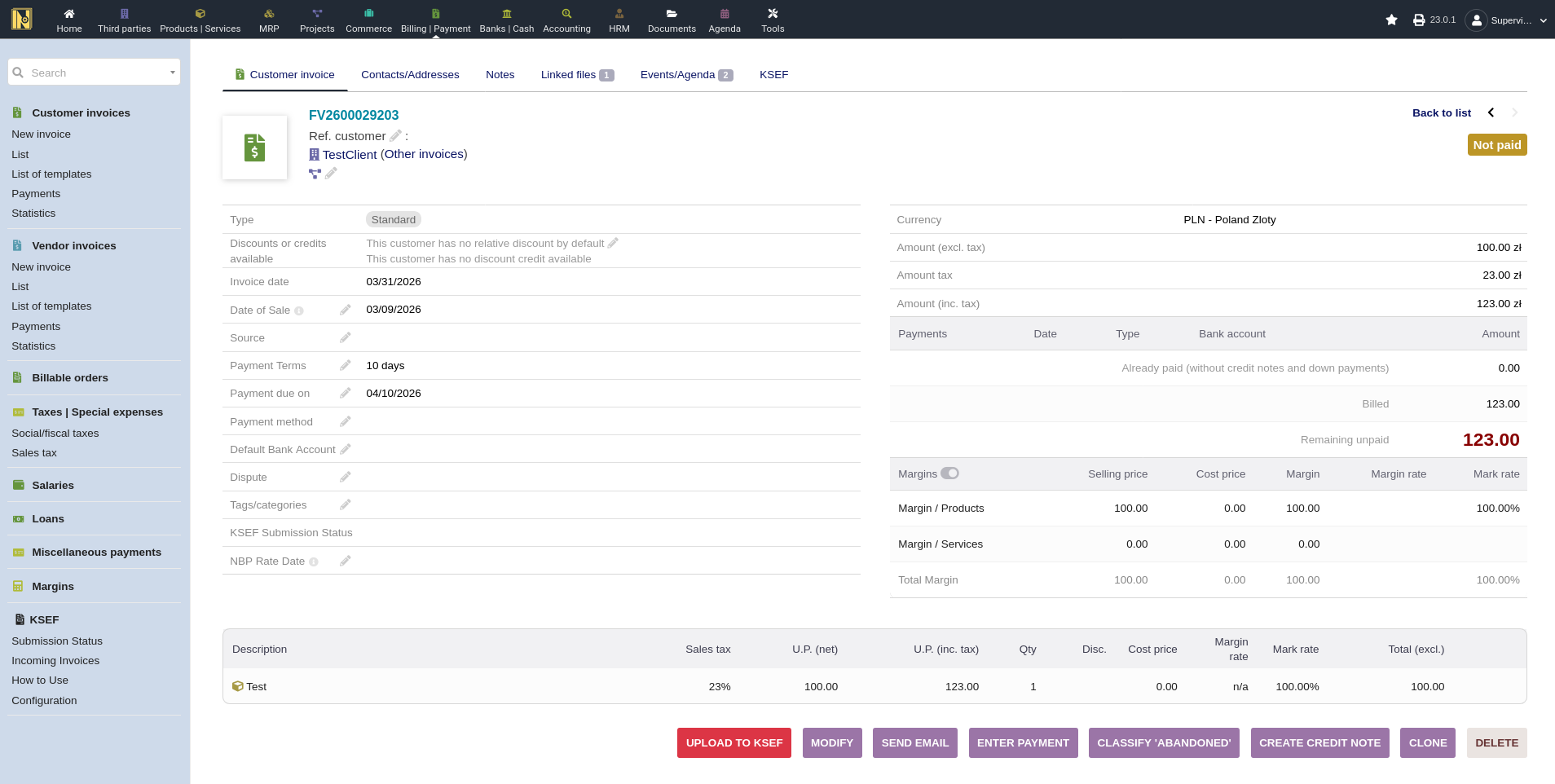
Once your invoice is ready, you'll see a KSeF action button on the invoice page. Which button you see depends on the invoice's state:
For Draft Invoices: Validate and Upload
If the invoice is still in draft, you'll see "Validate and Upload to KSeF". This validates (finalizes) the invoice in Dolibarr and immediately submits it to KSeF in one step, but you shoul be sure your invoice is correct before doing this.
For Validated Invoices: Upload to KSeF
If the invoice is already validated, you'll see "Upload to KSeF". This submits the validated invoice without changing its Dolibarr status. The button also adapts based on prior submission attempts:
No prior submission - the standard "Upload to KSeF" button
Pending - the button is disabled with a spinner while KSeF is still processing
Failed or Rejected - a yellow "Retry Submission" button appears (with the error in a tooltip), along with a green "Create Offline Invoice" fallback
Offline - a "Submit Online" button appears. If the offline deadline is less than 8 hours away, a countdown badge warns you
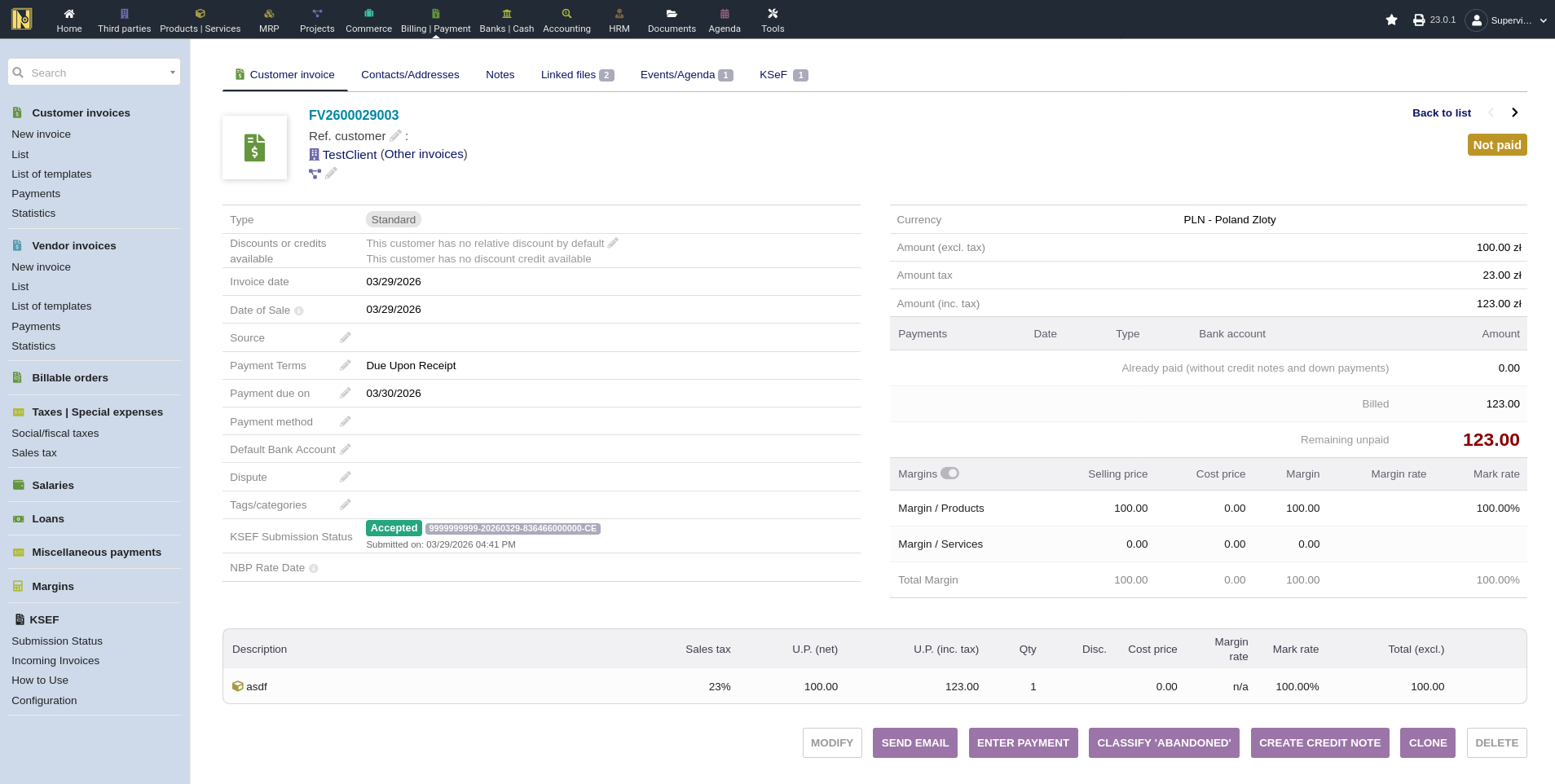
Accepted - no submission button. The Modify button is also disabled to prevent changes to a legally submitted invoice
Payment-First Workflow
If you want payment data (status, date, and amount) included in the KSeF XML, validate the invoice first, record the payment in Dolibarr, then click "Upload to KSeF". The "Validate and Upload" one-click shortcut skips that payment step, so if payment-first is your normal flow you can hide that button on the Outgoing Invoices settings tab - that leaves the separate validate, pay, and upload steps as the obvious path.
What Happens During Submission
When you click the button, the module first shows a confirmation dialog (this is on by default). It builds the FA(3) XML, generates a KSeF-style PDF, and embeds that preview in the dialog so you can see exactly how the invoice will look in KSeF before anything is sent. The dialog shows the active environment (Test/Demo/Production), flags any XML warnings, and warns you if KSeF is reporting availability issues. Nothing is submitted until you click Submit. (This pre-upload confirmation can be turned off in settings if you'd rather submit in one click.)
Once you confirm:
1. The XML is signed with your token or certificate
2. The signed XML is sent to the KSeF API
3. KSeF returns a reference number and begins processing
4. The module checks for acceptance - this usually takes a few seconds but can take longer during high-traffic periods
After a successful upload, a second dialog shows the accepted invoice's KSeF-style PDF with its KSeF number and buttons to Save to PC or Print. A KSeF tab also appears on the invoice showing the submission history.
PDF Preview Before Submitting
On any draft or validated invoice you can preview the KSeF-style PDF before submitting - the same visualization the recipient sees in the KSeF system. The preview uses "PODGLĄD" in place of the KSeF number and skips the verification QR code, since nothing has been submitted yet. It's a quick way to confirm line items, flags, notes, and totals look right before you upload.
Backdated Invoice Detection
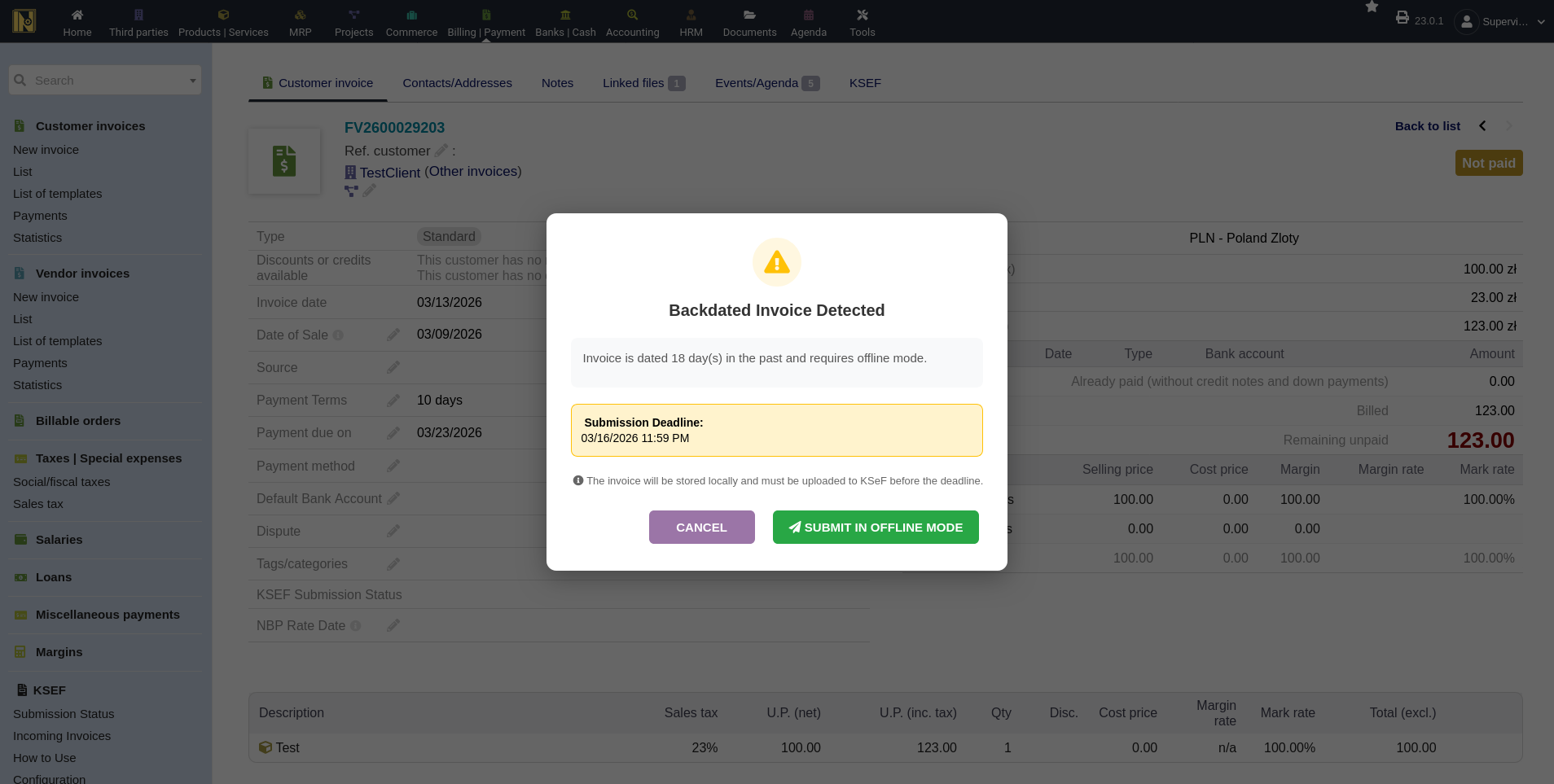
If you submit an invoice with a date before today (common when creating invoices retroactively), the module detects this and shows a confirmation dialog. The dialog explains the invoice is backdated, how many days behind the current date it is, and the deadline by which it must be submitted online.
You can cancel or proceed with creating an offline invoice. During "Validate and Upload", the invoice is validated first, then the backdating dialog appears.
In general, invoices cannot be backdated with KSeF, and it's better to adjust the Date of Sale while issuing the invoice on the current date.
When Submission Fails
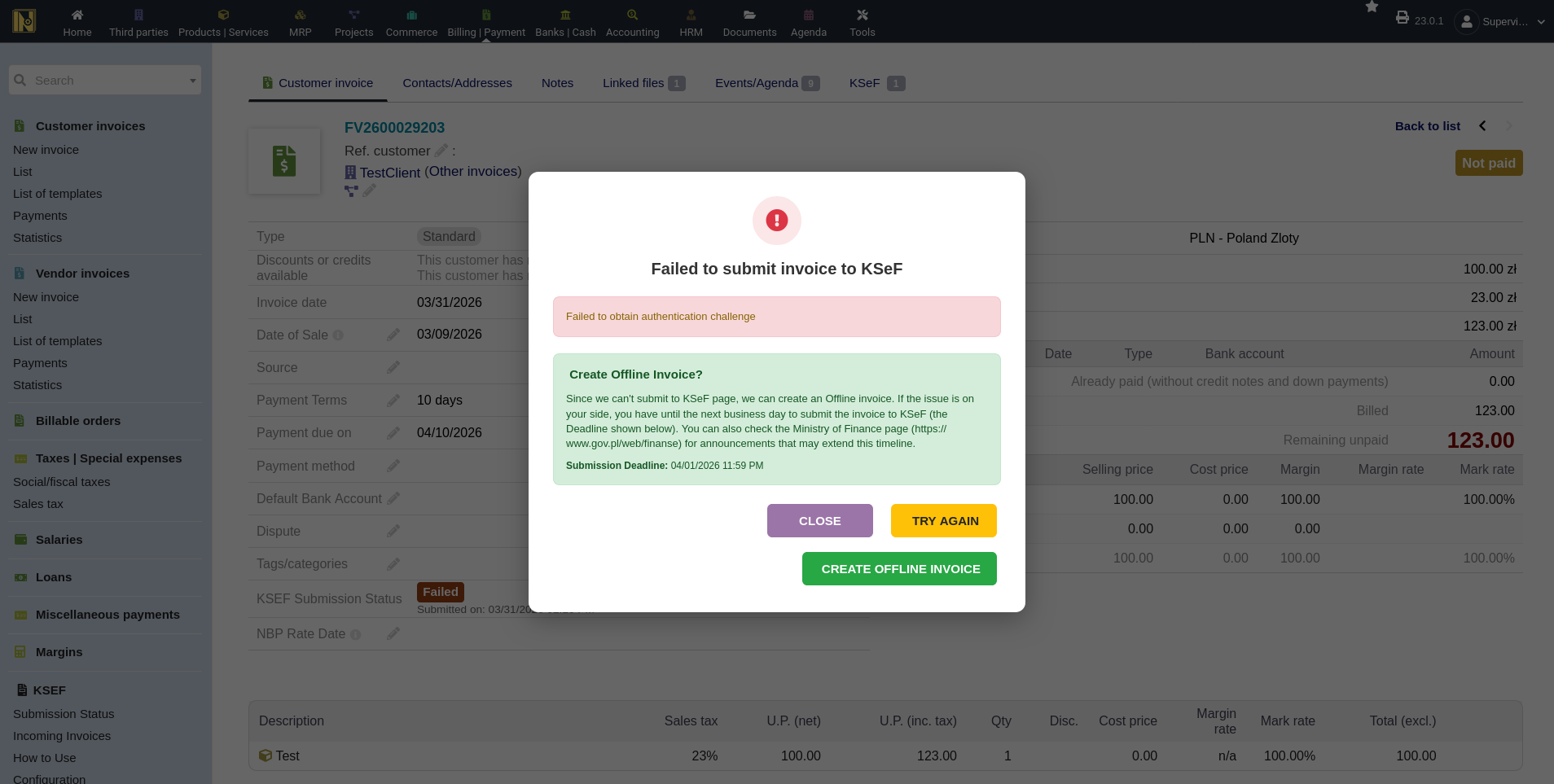
If a submission fails - connection error, KSeF rejection, or timeout - the module shows a failure dialog with the error details and three options: Close, Try Again, or Create Offline Invoice (fall back to offline mode with certificate signing). The offline option shows the best estimate of the deadline by which the invoice must eventually be submitted online (although it cannot guarantee accuracy in all possible cases).
During "Validate and Upload", the module validates the invoice first before attempting submission - so even if submission fails, you don't lose the validation. The failure dialog appears on the already-validated invoice.
If the offline certificate isn't configured and you try to create an offline invoice, the module tells you which components are missing (certificate file, private key, or password) with a link to the settings page.
Invoice Statuses
After submitting, the invoice gets a KSeF status:
Accepted - KSeF has assigned a KSeF number to the invoice. This is the final, successful state. The invoice is in the national system and legally valid. The KSeF number appears on the invoice page and is clickable - it links directly to the invoice on the KSeF verification portal.
Pending - submitted but KSeF hasn't finished processing it yet. Usually brief, but can take longer during peak times. The scheduled job checks automatically, or you can refresh manually.
Timeout - the submission was sent but the response didn't arrive in time. This doesn't necessarily mean the submission failed - KSeF may have accepted it. The module treats timeouts like pending submissions and checks for the result automatically. Don't retry immediately unless you've confirmed on the KSeF portal that the invoice wasn't received.
Rejected / Failed - KSeF did not accept the invoice. Error details are on the KSeF tab. Common causes: XML validation errors, duplicate invoice numbers, authentication issues. The module shows a yellow "Retry Submission" button and a green "Create Offline Invoice" fallback. Submissions can be retried up to 30 times before being marked as permanently failed.
Offline (Waiting for Online Submission) - the invoice was created while KSeF was unavailable (see Offline Invoices below). It's stored locally with a deadline for when it needs to be submitted online.
Correction Invoices
Polish tax law uses one concept for all invoice corrections: faktura korygująca. Dolibarr maps this to two invoice types, and the module sends both to KSeF as KOR corrections that reference the original invoice's KSeF number (the original has to be on KSeF already).
Which type to use
Credit note (Dolibarr "avoir") creates a negative invoice. Use it for reductions only - returns, quantity decreases, post-sale discounts.
Correction invoice (Dolibarr "replacement", which the module relabels "Correction invoice") replaces the original entirely. Use it for any change - amounts, VAT rates, addresses, or line edits. A paid invoice can only be corrected this way.
Creating a correction
Once an invoice is accepted on KSeF, a "Create correction" button appears on its card. It opens the invoice-creation page with the correction type and source invoice already selected. You can also start one from the invoice-creation page by picking the correction-invoice radio and choosing the source invoice. For an already-paid invoice, the module automatically applies a discount to settle the correction when it's validated, and the original is restored to Paid/Closed status rather than cancelled.
Correction details
Set the Correction Reason (PrzyczynaKorekty) - free text, recommended by Polish law but not required by the schema, and always stored in Polish, with a configurable default. You can optionally set the Correction Type (TypKorekty), which states when the correction takes effect (original date, correction date, or another date).
What gets sent
The KOR XML references the original by its KSeF number. For correction (replacement) invoices the line method is configurable on the Outgoing Invoices settings tab: Before/After (StanPrzed, the default) emits the original and corrected state for each line, while Differential emits only the changed lines. Credit notes always use the Differential method regardless of this setting.
Correction chains
A correction invoice can itself be corrected (korekta korekty); each correction references the previous one. You can't unvalidate or delete an invoice that has already been corrected.
Modifying submitted invoices
Once an invoice is accepted by KSeF the Modify button is disabled - the submitted version is the legally binding one - so issue a correction instead. A correction invoice that hasn't been sent to KSeF yet can still be modified; offline invoices not yet submitted online show a warning with the offline deadline but stay editable, and failed submissions stay editable with an informational note.
Foreign Currency Invoices
If you invoice in EUR, USD, or any other foreign currency, KSeF requires an NBP (National Bank of Poland) exchange rate. The module handles this, but there are a few things to know.
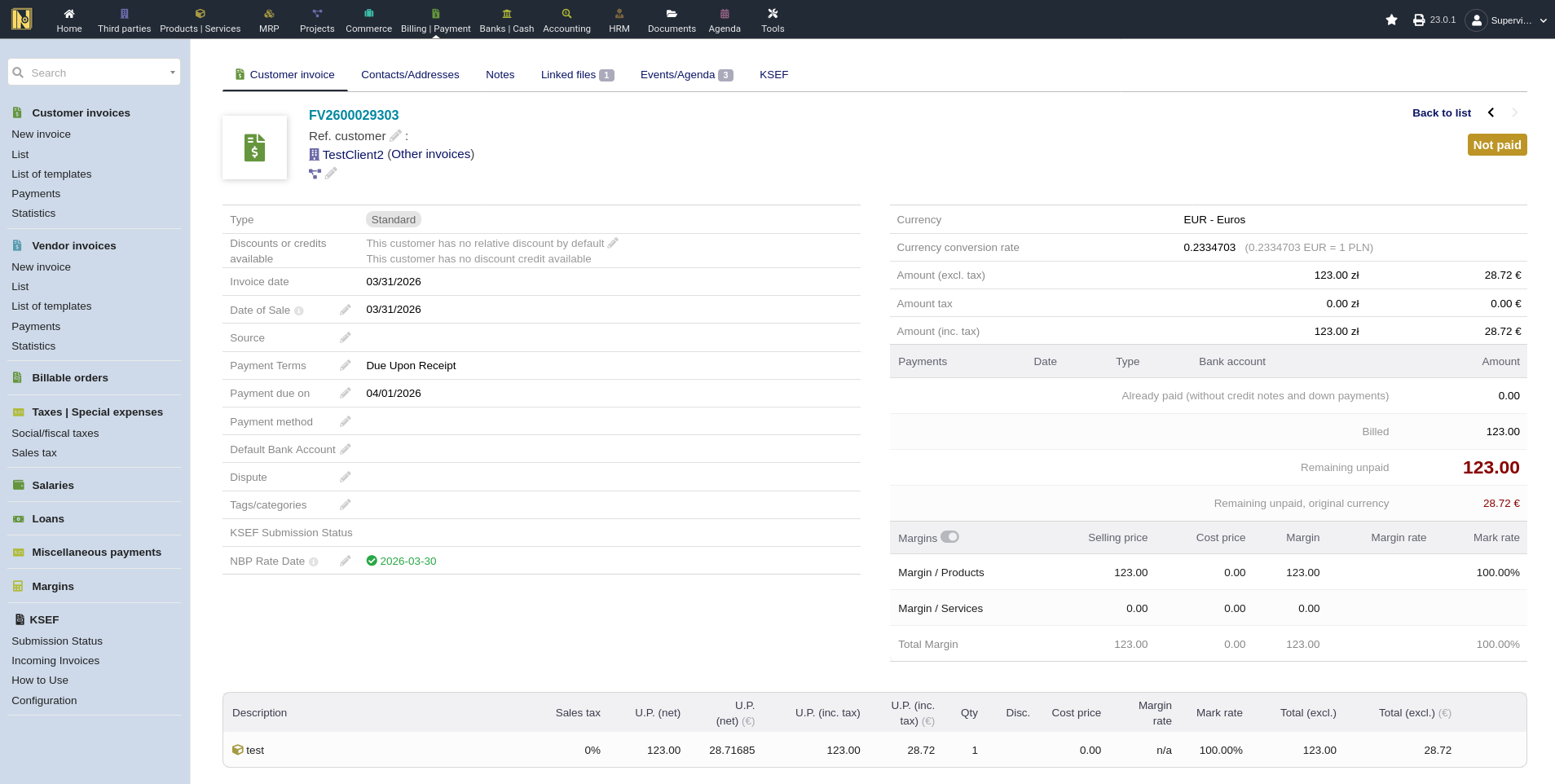
Polish tax law requires using the NBP exchange rate from the last working day before the invoice date. The module fetches this from the NBP Web API using the date of invoice. On the invoice page for a foreign currency invoice, you'll see a button to fetch the NBP rate. Click it and the module will:
1. Query the NBP API for the correct rate based on the invoice date
2. Store the rate and the rate date on the invoice
3. Display both on the invoice page
Submission is blocked until the NBP rate is fetched. The KSeF button won't work without it - this prevents submitting with missing exchange rate data, which would cause rejection. Once the NBP rate is fetched, the module also disables Dolibarr's built-in multicurrency rate refresh button on that invoice to prevent accidentally overwriting the NBP rate with a different source.
Rate Application Mode - The NBP rate will usually differ slightly from the rate Dolibarr used when creating the invoice. The "NBP Rate Application Mode" setting (configured in Getting Started) controls which side is preserved - either PLN amounts stay and foreign currency is recalculated, or vice versa.
Prerequisites:
The Multicurrency module must be enabled in Dolibarr
The invoice must have a non-PLN currency set
The customer's currency should be configured on their third party card
Offline Invoices
When KSeF is unavailable (planned maintenance or unexpected outage, or just your internet stopped working), the module can still issue invoices. Instead of sending the invoice to KSeF immediately, the module:
1. Generates the FA(3) XML as usual
2. Signs it with your offline certificate (separate from your authentication token/certificate - see Getting Started)
3. Stores the signed invoice locally
4. Adds a QR II code to the invoice for verification
5. Sets a deadline for when the invoice must be submitted online once KSeF is available again
The invoice gets an "Offline" status and can be used immediately - it's legally valid even before it reaches KSeF, because it's signed with the offline certificate.
Submitting Offline Invoices Online
Once KSeF is back online, offline invoices need to be submitted. You can do this manually by opening the invoice and clicking "Submit Online", or the scheduled job handles it automatically (see Automation & Extra Features).
The "Submit Online" button shows a countdown badge when the deadline is less than 8 hours away. If the deadline has passed, the button is replaced with a red "Deadline Passed" indicator - at that point you'll need to create a new invoice or a technical correction.
The submission uses the original signed XML, preserving the hash. The module doesn't regenerate or re-timestamp the XML, which would break the signature.
Requirements for offline invoices:
An offline signing certificate must be configured in the module settings (separate from the authentication certificate)
The offline certificate must be valid (check the expiry date on the About page)
Offline submission deadlines vary. The module defaults to calculating the next working day as the submission deadline, but the actual deadline depends on the type of outage (planned maintenance, ordinary outage, or user-side issue). The module handles this based on the information available, but always check official guidance from the Ministry of Finance just in case.
After Acceptance
Once KSeF accepts an invoice, several things become available:
KSeF Number - The invoice gets a unique KSeF number (e.g. 1234567890-20260330-ABCDEF123456-78). This appears on the invoice page and is clickable - it opens the invoice on the KSeF verification portal.
KSeF-Style PDF - A PDF that matches the visual style of invoices as shown in the KSeF application. This is generated automatically after successful submission or offline creation, so you usually don't need to do anything. A "Generate KSeF PDF" button on the invoice page lets you regenerate it if needed. The PDF uses your company logo (from Home → Setup → Company/Organization) and respects the logo height setting from Setup → PDF. It includes the appropriate QR codes: a standard verification QR for online invoices, or dual QR codes (OFFLINE + CERTYFIKAT) for offline invoices.
QR Codes on Standard PDFs - If you have "Add QR code to PDF" enabled in the module settings, your regular Dolibarr invoice PDFs will also include a KSeF verification QR code and the KSeF number after acceptance. Your standard printable invoices automatically show the KSeF verification information without needing the separate KSeF-style PDF.
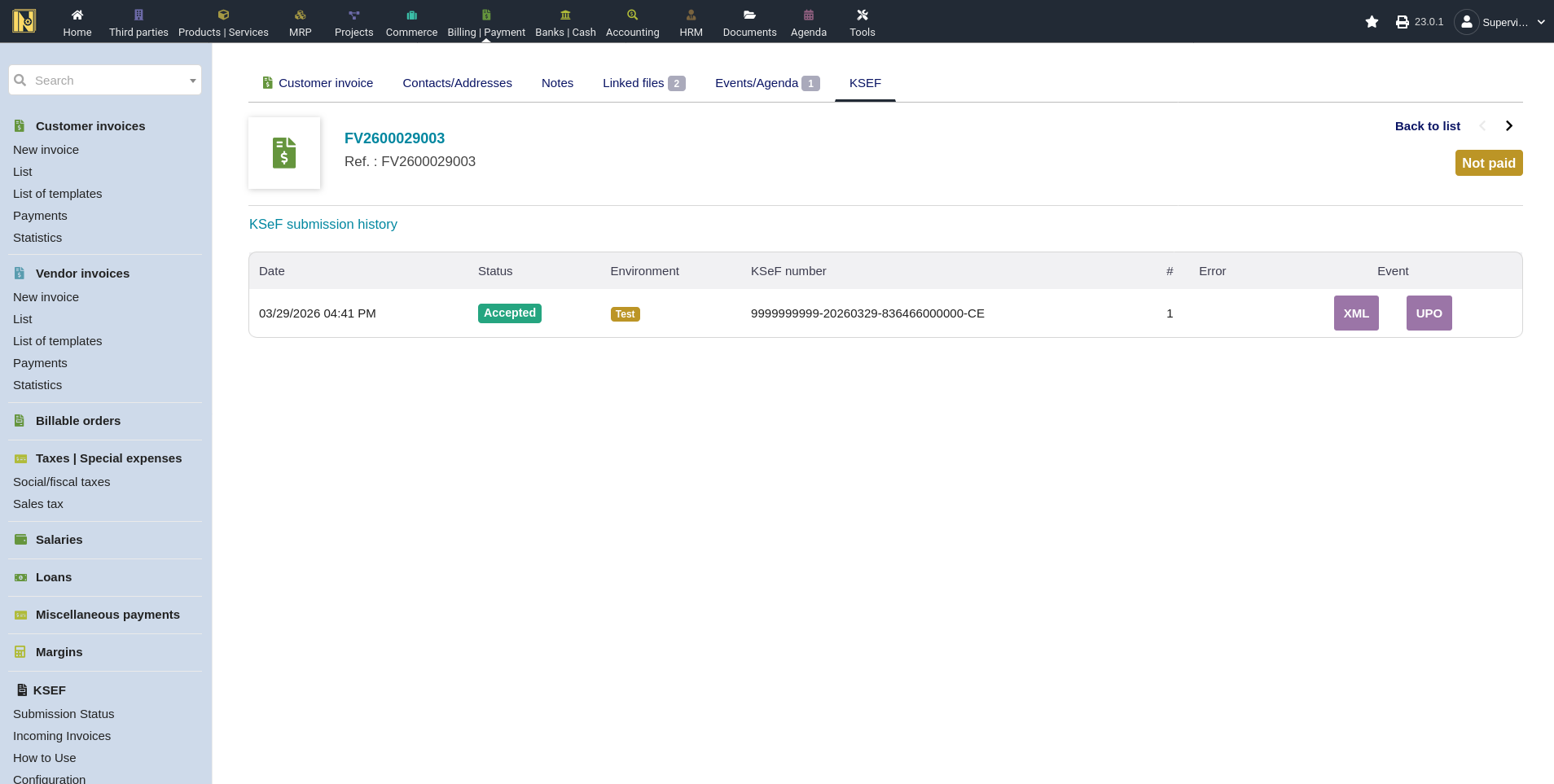
XML and UPO Downloads - From the KSeF tab on any submitted invoice, you can download:
- The submitted XML - the actual FA(3) XML that was sent to KSeF
- UPO (Urzędowe Poświadczenie Odbioru) - the official receipt of submission from KSeF
Customer Exclusions
Some customers shouldn't have their invoices sent to KSeF - generic B2C customers without NIP and other cases. You can exclude customers in two ways:
From the module settings - add customers to the exclusion list in the KSEF Configuration page
From the third party card - use the KSeF exclusion field directly on the customer's record
When a customer is excluded, the KSeF button simply doesn't appear on their invoices. The invoices are created and managed normally in Dolibarr - they just skip the KSeF step.
Advance Payment Invoices
The module handles advance payment invoices (faktury zaliczkowe) by treating them as deposit invoices in Dolibarr. These are submitted to KSeF the same way as standard invoices - the FA(3) XML builder includes the appropriate advance payment fields and type markers.
Checking Submission Status
Three places to monitor your KSeF submissions:
KSeF Tab on Individual Invoices - Every submitted invoice has a KSeF tab showing the full submission history - each attempt with its timestamp, status, environment (Test/Demo/Production), KSeF number, attempt count, and error details. You can also download the submitted XML and UPO directly from this tab.
Submissions Status - Shows the history of all invoices which have been uploaded. You can download the submitted XML and UPO directly here as well.
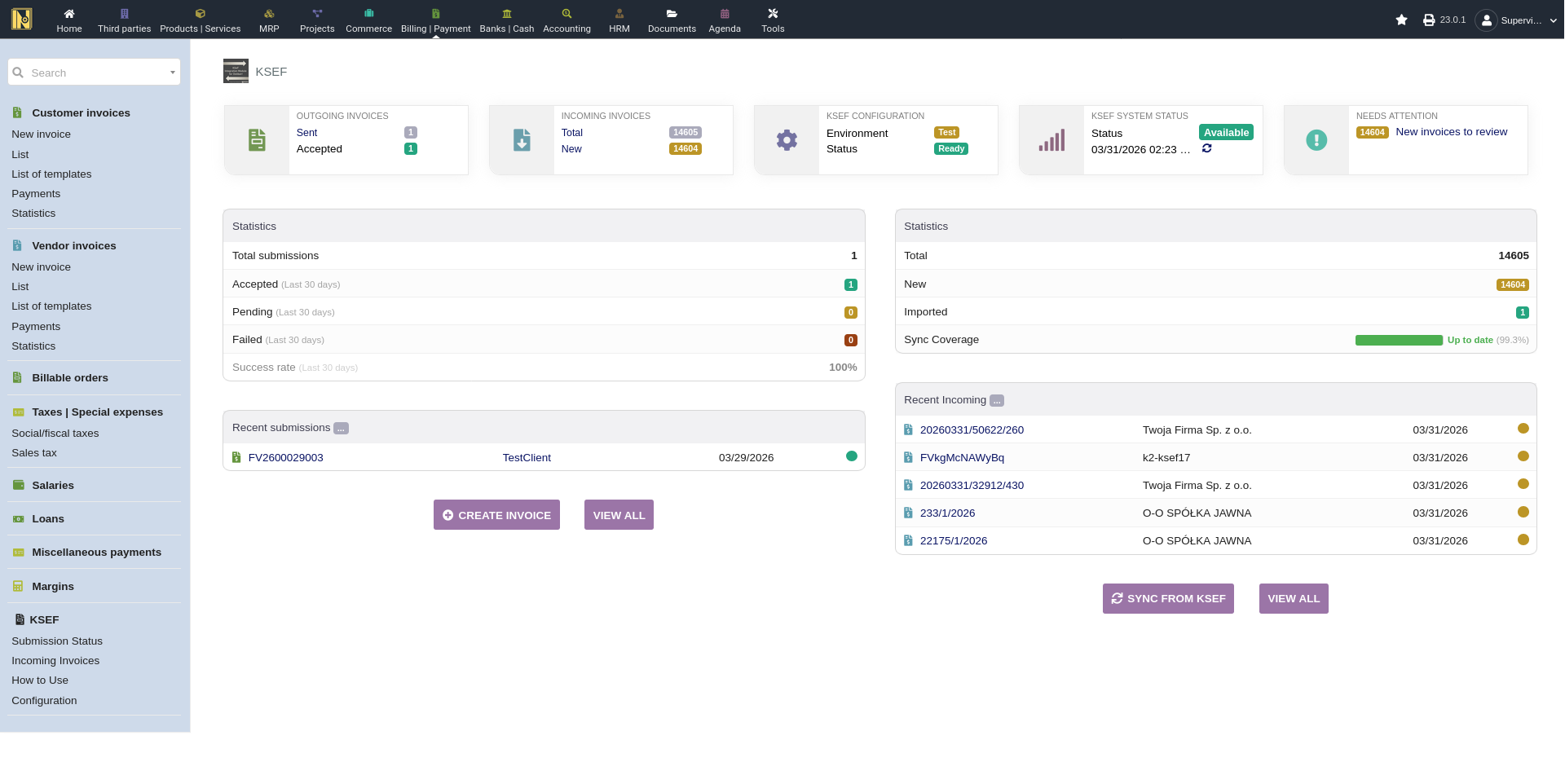
KSeF Page (Click the KSeF header of the module) - shows recent submissions across all invoices both incoming and outgoing.
Tips and Common Issues
2026 is a transitional year. Penalties for KSeF non-compliance don't apply yet, so this is the time to test, get comfortable, and work out any issues with your workflow.
Test before going live! Send a few invoices in Test or Demo and verify the XML output, the KSeF-style PDF, and the QR codes all look correct before switching to Production.
Check the KSeF tab after submission if the KSeF number and "Accepted" Status don't appear for more details.
Correction invoices or deleting and re-sending invoices in test/demo. Invoice numbers persist between sessions in test and demo environments on the KSeF side. If you get Error 440 (duplicate invoice number), that number was already used in a previous session. Change it and try again. It's not a good practice to delete invoices in production after submission so it's unlikely to happen here.